-
Brain Out là một game giải đố thách thức trí thông minh của bạn. Đáp án Brain out từ level 1 đến 225 này sẽ giúp bạn hoàn thành trò chơi mỗi khi không thể tìm ra đáp án cho câu hỏi.
-

Để xoá trang trắng trong Word bạn có nhiều cách, tùy thuộc vào vị trí xuất hiện trang trắng, nguyên nhân tạo ra trang trắng. Bài viết dưới đây sẽ hướng dẫn bạn đọc các cách để xóa nhanh trang trắng trong Word.
-

Quản Trị Mạng sẽ hướng dẫn các bạn cách tạo dòng dấu 3 chấm trong Microsoft Word 2016, Word 2013, Word 2010 và Word cũ hơn như Word 2007, 2003 nhanh chóng bằng cách dùng phím tắt.
-

Quantrimang.com đã tổng hợp rất nhiều stt thả thính về các chủ đề khác nhau như stt thả thính ngắn, stt thả thính hài hước, stt thả thính theo tên, về mùa hè, về món ăn… mời các bạn tham khảo để có stt ấn tượng các mạng xã hội nhé.
-
Chuyển PDF sang Word, đổi file PDF thành văn bản mà vẫn giữ nguyên định dạng, chất lượng là yêu cầu cơ bản khi người dùng thực hiện chuyển đổi PDF sang DOCX. Hãy tham khảo bài viết để chuyển PDF thành Word dễ dàng mà vẫn đảm bảo yêu cầu nhé.
-
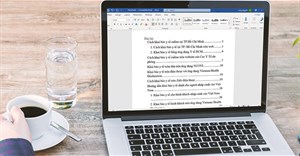
Tạo mục lục tự động trong Word giúp tiết kiệm thời gian và tăng tính tiện dụng khi làm việc trên trình soạn thảo văn bản này. Dưới đây là hướng dẫn tạo mục lục Word tự động chi tiết, mời các bạn theo dõi.
-

Căn giữa ô trong Word khi làm việc với bảng biểu là thao tác cần phải thực hiện để định dạng lại chữ trong từng ô theo đúng quy định, cũng như tạo bảng Word có bố cục đẹp và dễ nhìn hơn.
-
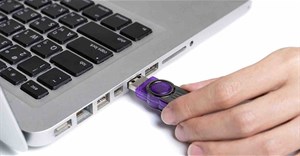
Hướng dẫn cách tạo USB boot với Hiren's boot chi tiết, với vài thao tác đơn giản bạn đã có chiếc USB để boot, cài Win rồi.

 Công nghệ
  Học CNTT
  Tiện ích
  Khoa học
  Cuộc sống
  Video
Video  Làng Công nghệ
  Ứng dụng
  Game - Trò chơi
  iPhone
  Để kiểm tra thông tin cấu hình máy tính Windows bạn có thể dùng lệnh dxdiag trên cmd, xem qua Properties của PC hoặc dùng phần mềm hỗ trợ. Trong bài viết dưới đây, Quản Trị Mạng sẽ hướng dẫn các bạn những cách kiểm tra, xem cấu hình phần cứng trên máy tính nhanh chóng, đơn giản nhất nhưng vẫn đảm bảo cung cấp đủ thông tin máy tính cần thiết.
 Những câu đố vui, câu đố hài hước nhưng đầy trí tuệ và hại não mà quantrimang.com tổng hợp dưới đây sẽ giúp các bạn có những giây phút thoải mái, vui vẻ cùng người thân và bạn bè.


 Công nghệ
  Ứng dụng
  Hệ thống
  Game - Trò chơi
  iPhone
  Android
  Linux
Linux  Nền tảng Web
  Đồng hồ thông minh
  Chụp ảnh - Quay phim
  macOS
macOS  Phần cứng
  Thủ thuật SEO
  Kiến thức cơ bản
  Raspberry Pi
  Dịch vụ ngân hàng
  Lập trình
  Dịch vụ nhà mạng
  Dịch vụ công trực tuyến
  Nhà thông minh
  Học CNTT
  Quiz công nghệ
  Microsoft Word 2016
  Microsoft Word 2013
  Microsoft Word 2007
  Microsoft Excel 2019
  Microsoft Excel 2016
  Microsoft PowerPoint 2019
  Microsoft PowerPoint 2016
  Google Sheets - Trang tính
  Code mẫu
  Photoshop CS6
  Photoshop CS5
  Lập trình Scratch
  HTML
HTML  Học Python
  CSS và CSS3
  Lập trình C
  Lập trình C++
  Lập trình C#
  Học HTTP
  Bootstrap
  SQL Server
  JavaScript
  Học PHP
  jQuery
  Học MongoDB
  Unix/Linux
  Học Git
  NodeJS
  Download
  Ứng dụng văn phòng
  Tải game
  Tiện ích hệ thống
  Ảnh, đồ họa
  Internet
  Bảo mật, Antivirus
  Họp, học trực tuyến
  Video, phim, nhạc
  Giao tiếp, liên lạc, hẹn hò
  Hỗ trợ học tập
  Máy ảo
  Tiện ích
  Khoa học
  Khoa học vui
  Khám phá khoa học
  Bí ẩn - Chuyện lạ
  Chăm sóc Sức khỏe
  Khoa học Vũ trụ
  Khám phá thiên nhiên
  Phát minh Khoa học
  Điện máy
  Tủ lạnh
  Tivi
Tivi  Điều hòa
  Máy giặt
  Quạt các loại
  Cuộc sống
  Kỹ năng
  Món ngon mỗi ngày
  Làm đẹp
  Nuôi dạy con
  Chăm sóc Nhà cửa
  Du lịch
  Halloween
  Mẹo vặt
  Giáng sinh - Noel
  Tết 2024
  Quà tặng
  Giải trí
  Là gì?
  Nhà đẹp
  TOP
TOP  Video
Video  Công nghệ
  Video Khoa học
  Ô tô, Xe máy
  Giấy phép lái xe
  Làng Công nghệ
  Tấn công mạng
  Chuyện công nghệ
  Công nghệ mới
  Trí tuệ nhân tạo (AI)
  Anh tài công nghệ
  Bình luận công nghệ
  Tổng hợp